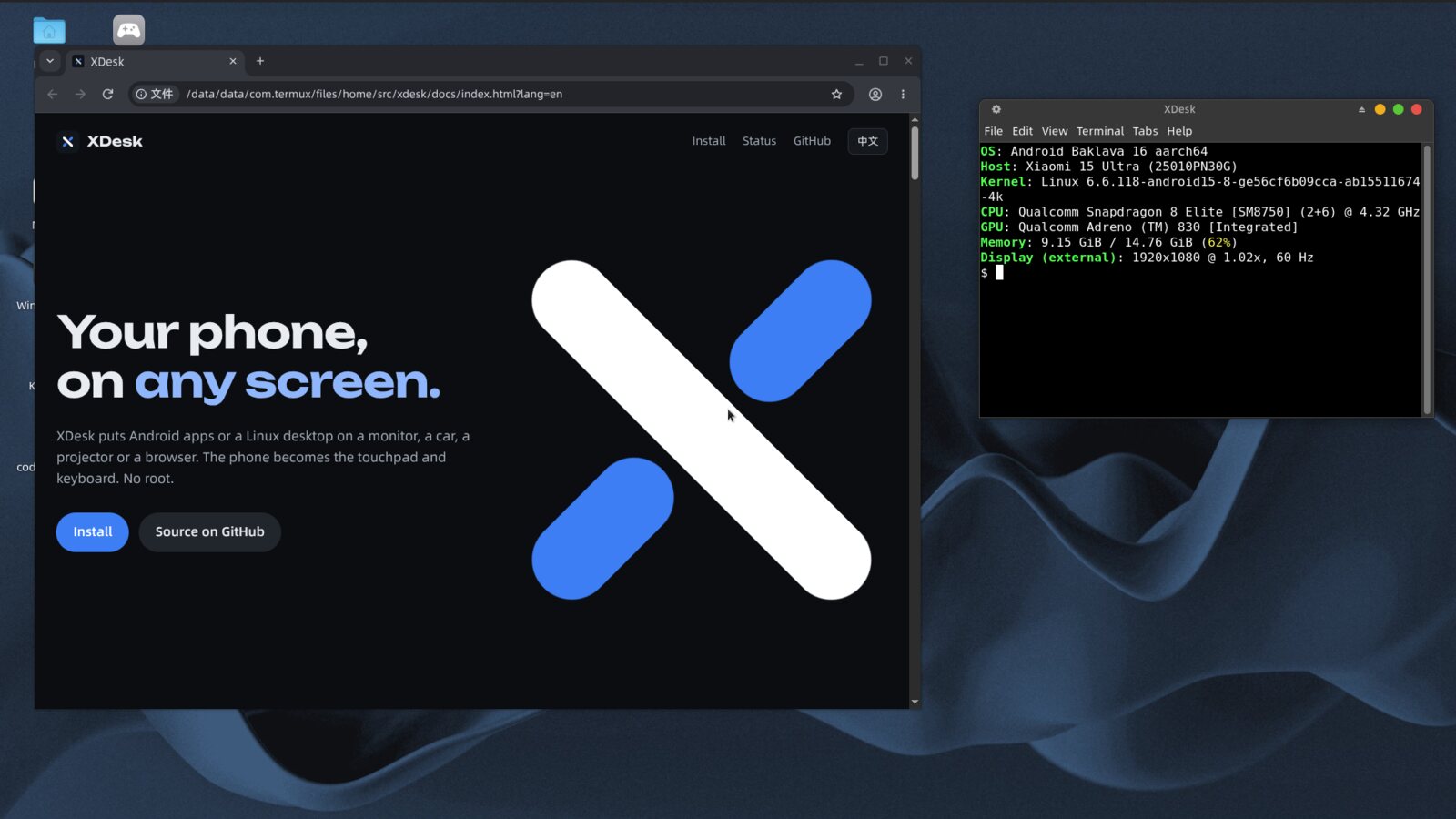

Install one app, activate it once, connect a screen. Your Android apps run full screen, and the phone becomes the touchpad and keyboard. 装个 App,激活一次,插上显示器。应用在大屏上全屏运行,手机拿来当触摸板和键盘。

Android 11 or newer. No root, no computer, nothing else to install. 安卓 11 及以上就行。不用 root,不用电脑,也不用装别的。
Download xdesk.apk from the latest release and install it.
到发布页下载 xdesk.apk,装上就行。
If your file manager refuses, use adb install -r xdesk.apk.
文件管理器装不了的话,用 adb install -r xdesk.apk。
On Wi-Fi, turn on Wireless debugging and type the pairing code into XDesk. Then allow its overlay permission. 连上 Wi-Fi,打开无线调试,把配对码输进 XDesk,再给它悬浮窗权限。
On Xiaomi, also turn on USB debugging (Security settings). Shizuku works too. A reboot needs activation again. 小米手机还要打开“USB 调试(安全设置)”。已经在用 Shizuku 的话,直接用它也行。手机重启后要重新激活。
Plug in a monitor over USB-C, open XDesk and tap an app. 用 USB-C 线连上显示器,打开 XDesk,点一个应用。
If plugging in a monitor mirrors your screen, your phone qualifies. No cable? Keep scrolling. 插上显示器能镜像手机画面,就说明支持。没有线也没关系,往下看。
The apps already on your phone, on the display. A Bluetooth mouse and keyboard work too. 手机里现成的应用,直接放到大屏上用,也能接蓝牙鼠标和键盘。 Needs USB-C video output 手机要支持 USB-C 视频输出
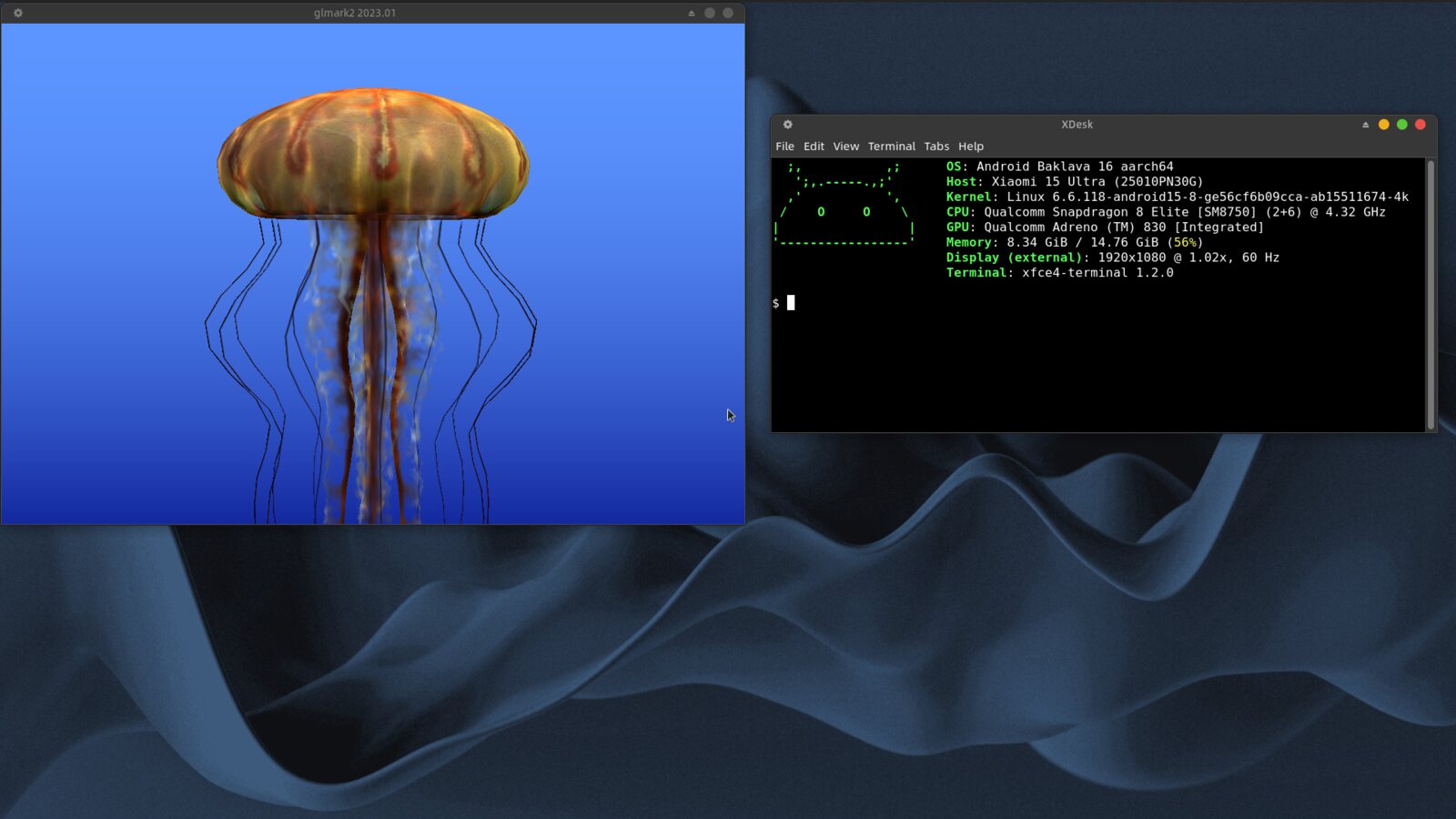
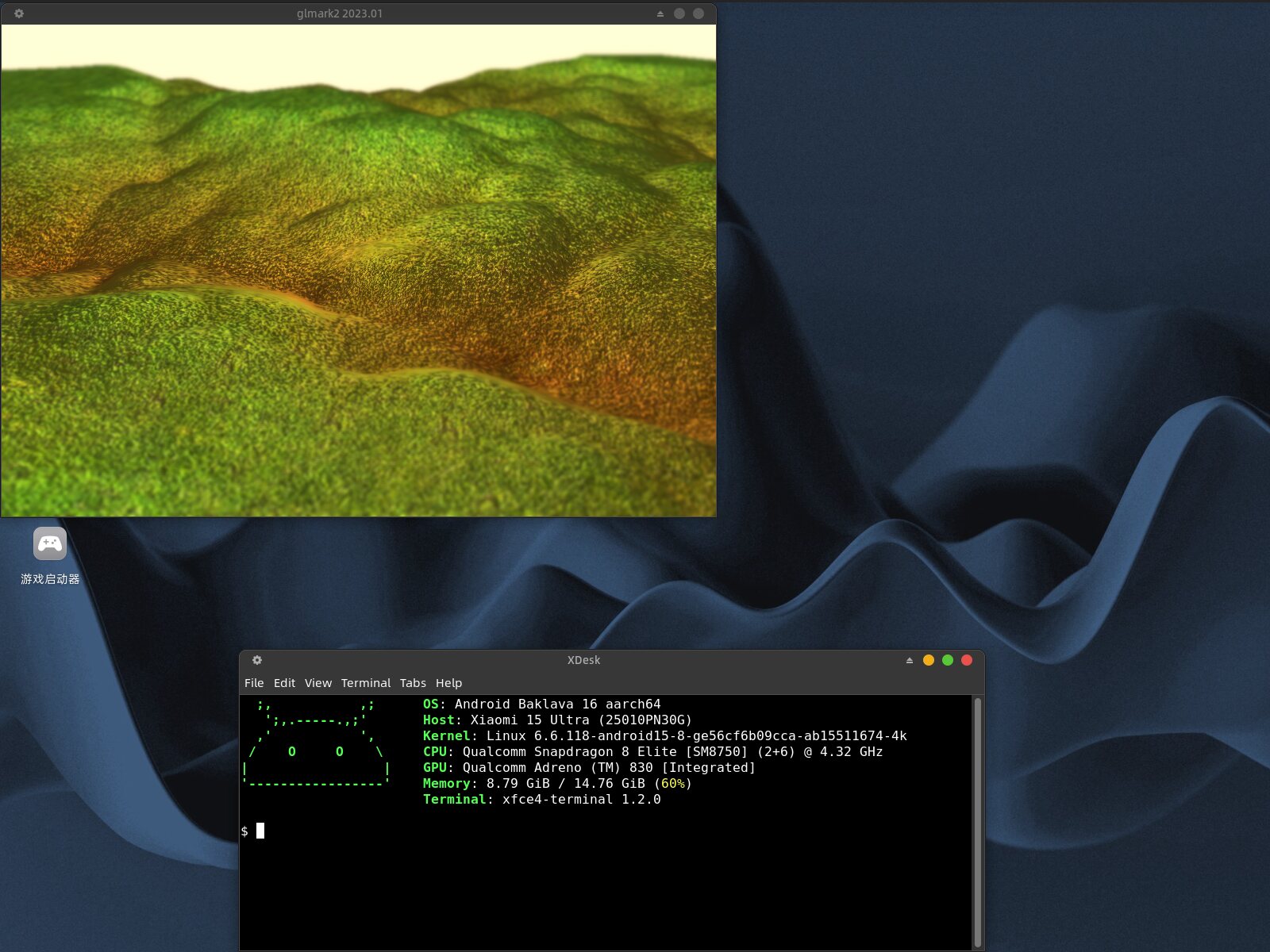
XFCE and more from Termux, proot or chroot, with GPU acceleration in Termux on Adreno. Termux、proot、chroot 里的 XFCE 等桌面都能跑,骁龙手机上的 Termux 还有 GPU 加速。 Optional. Needs Termux 可选,要装 Termux
No cable? Cast over Wi-Fi to XDesk Receiver on a projector, TV box or old phone, picture and sound. On a tablet you can also work the phone right on its screen, as a touchpad or by touch, with the phone's own keyboard. 没有线的话,用 Wi-Fi 投到投影、电视盒子或旧手机上,画面声音都有。对方装个 XDesk 接收器就行。投到平板上,还能直接在平板上操作手机,当触摸板用或者点哪是哪,打字用的是手机自己的键盘。 Receiver runs on Android 5.0 or later 接收器要求安卓 5.0 及以上
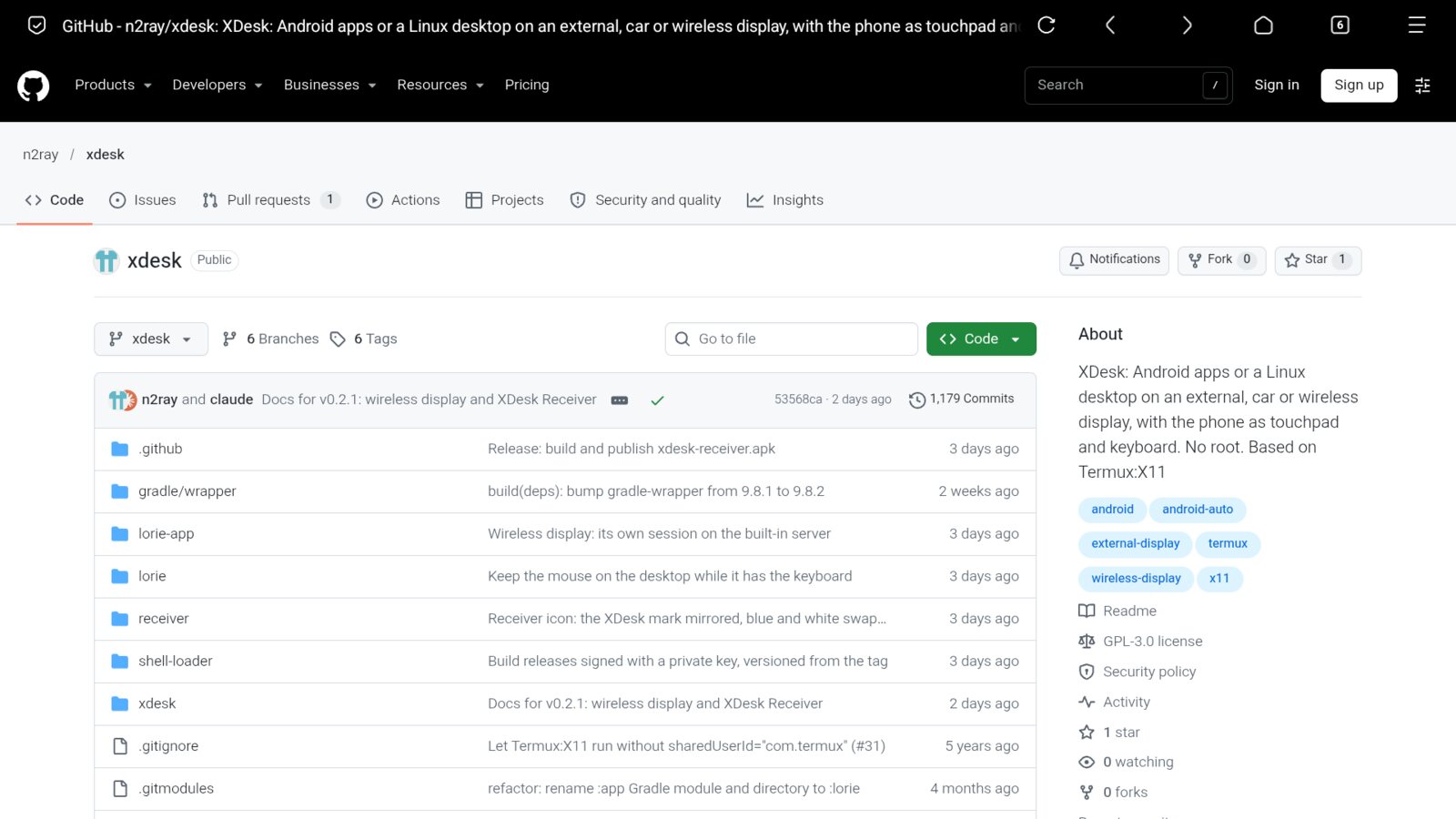
An iPad, laptop or smart TV, with nothing to install on it. Turn on Web display in the settings. iPad、电脑、智能电视,有浏览器就行,什么都不用装。在设置里打开“网页显示”。 For networks you trust 只在信得过的网络里用
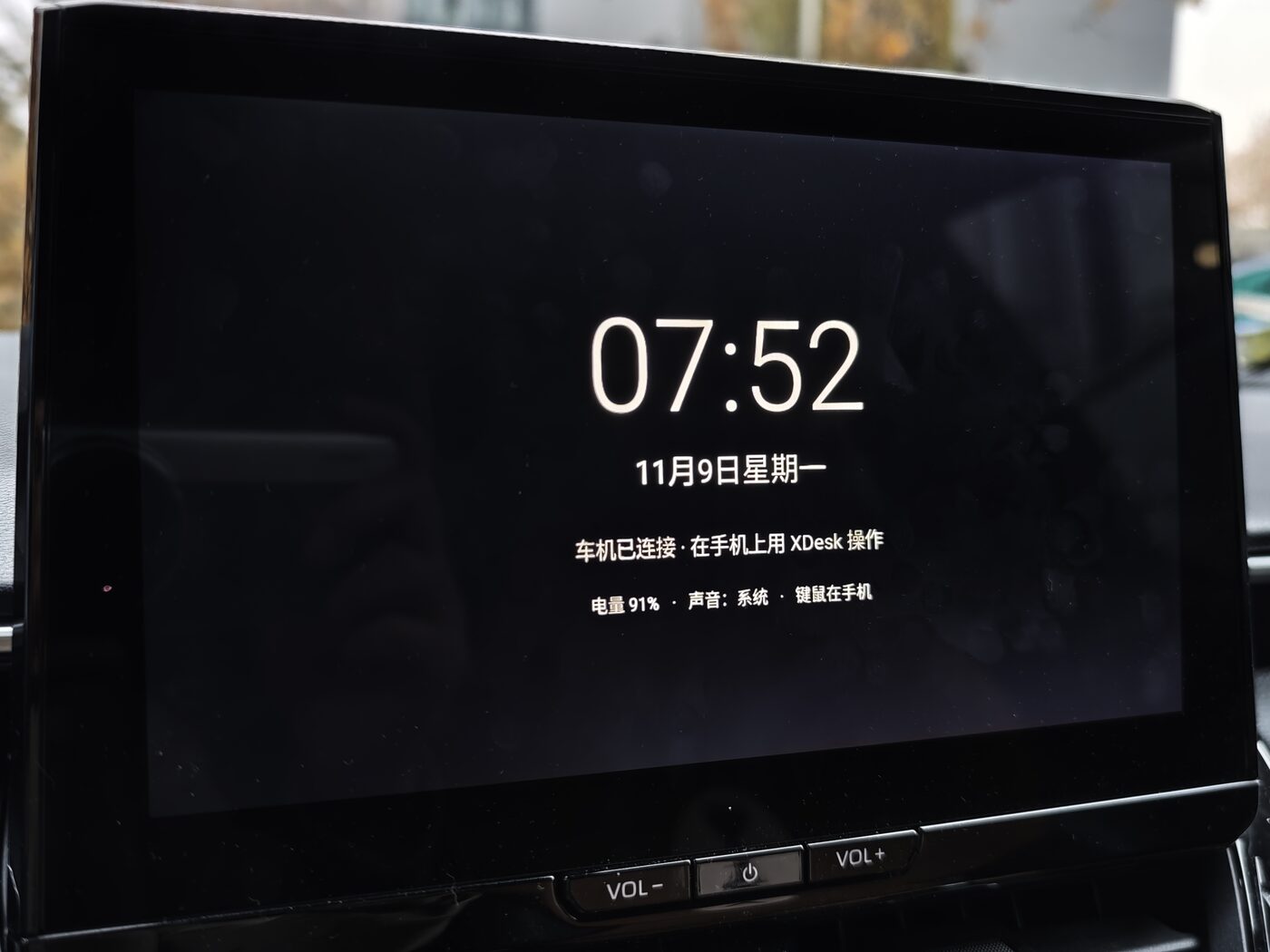
Through Android Auto, with sound in the car. Experimental. 通过 Android Auto 投到车机,声音也从车里出。目前还是实验功能。 Parked only 只能停车时用
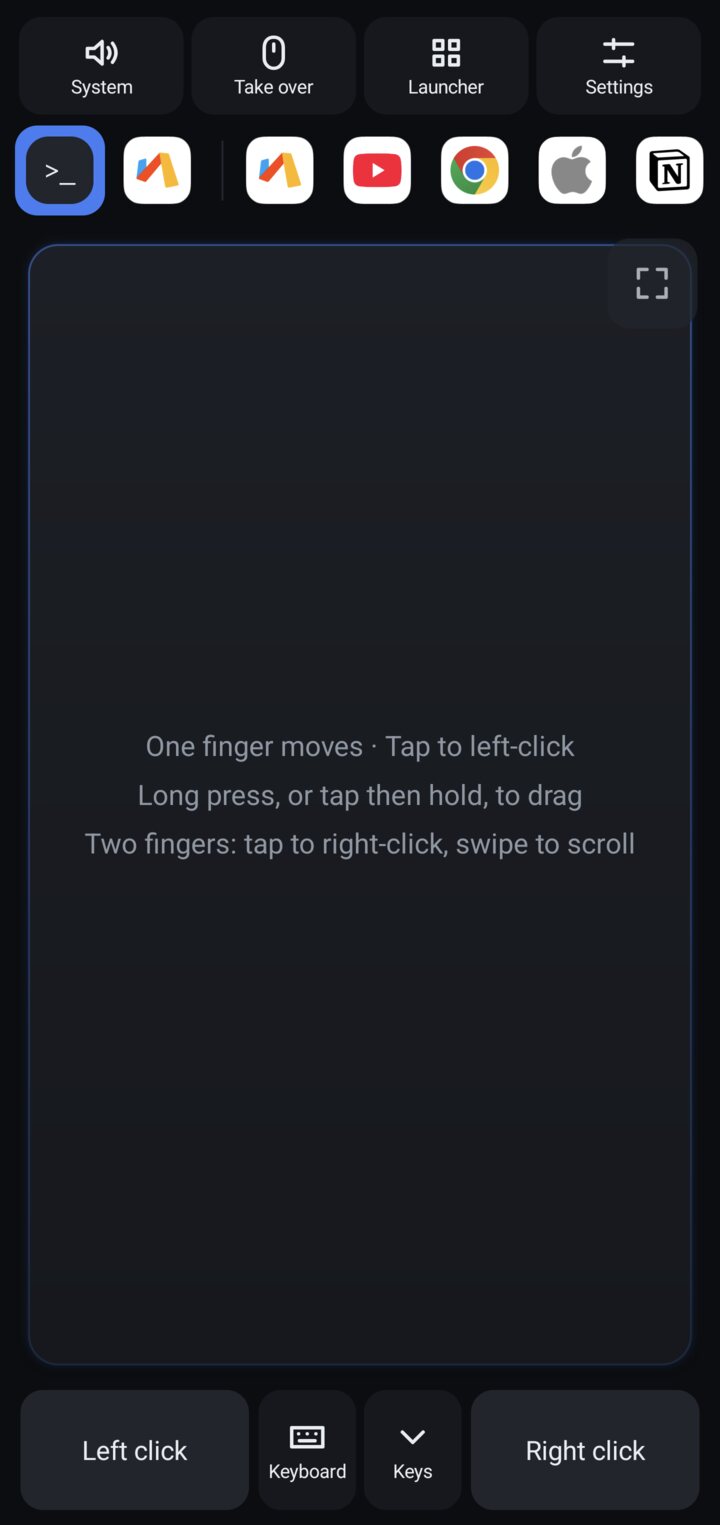
Move, tap, drag and scroll. On Linux desktops the phone's input method can type Chinese and other languages. 移动、点按、拖动、滚动都在手机上完成。在 Linux 桌面里,可以直接用手机输入法打中文。
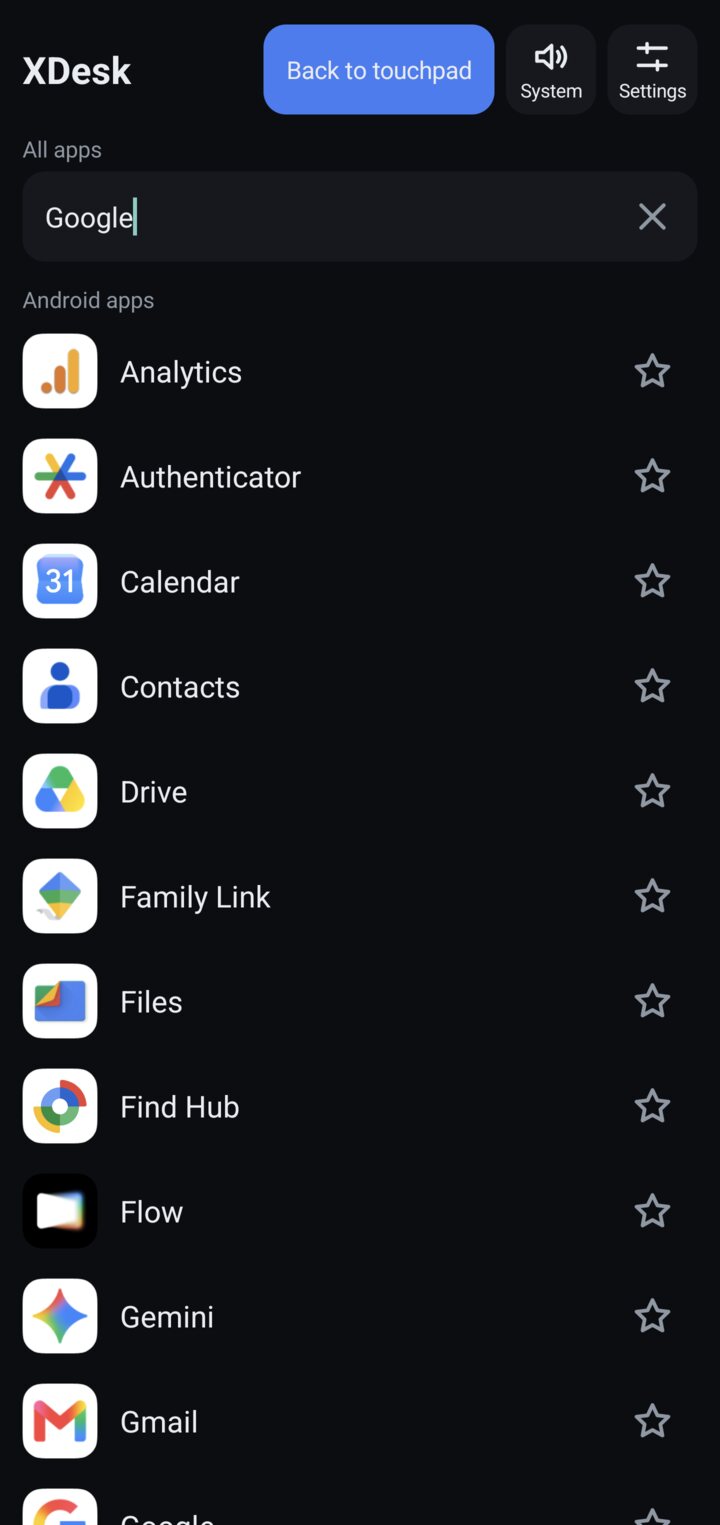
Search your apps, dual apps included, and pin favourites. One tap switches what's on the display. 搜索应用,双开的也在里面,把常用的固定下来,点一下就能换掉大屏上的内容。
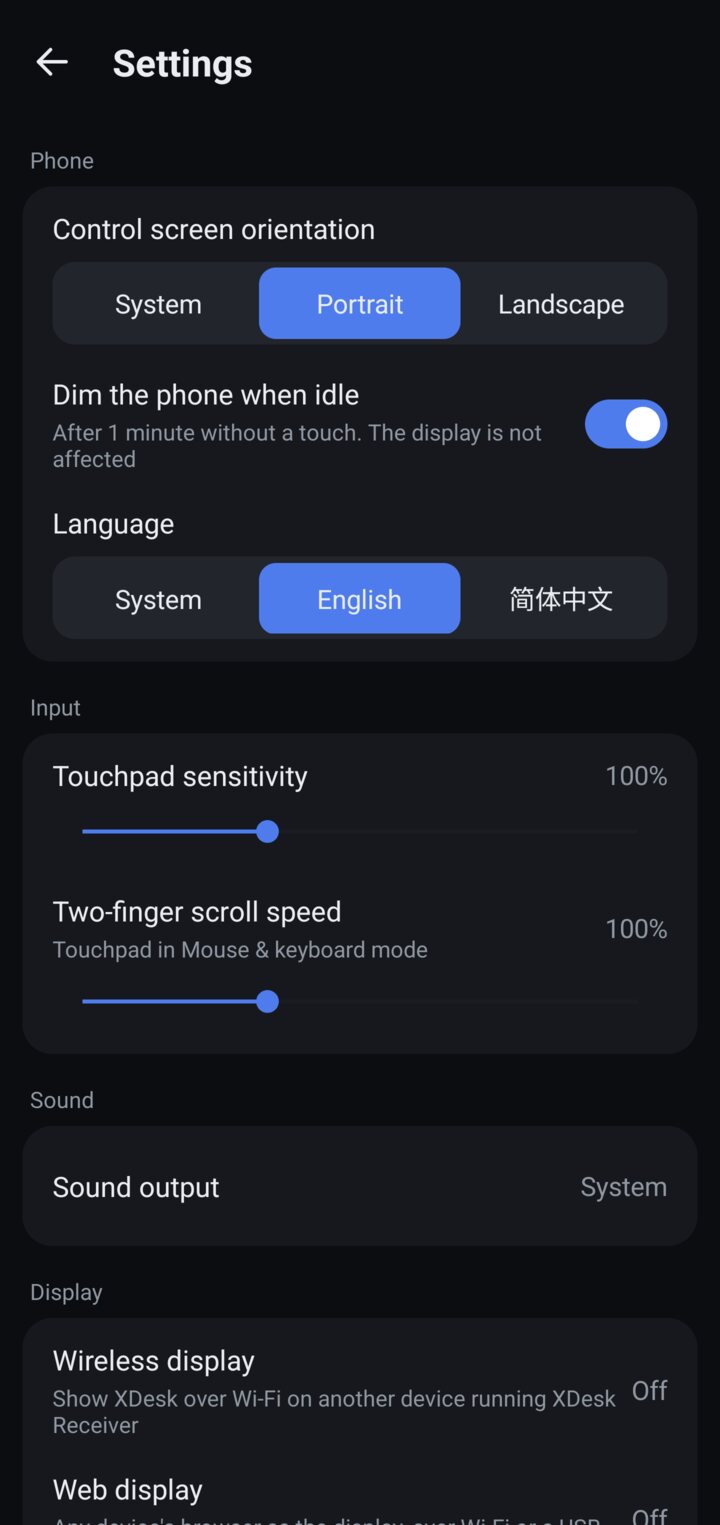
Speaker, Bluetooth, the display or the car. The same setting works for every kind of screen. 手机扬声器、蓝牙耳机、显示器还是车机,在一个地方选,所有屏幕通用。
Connect a mouse and keyboard, and the big screen has what you expect from a desktop. 接上鼠标键盘,大屏上就有你熟悉的桌面操作。
The display's home screen is a grid of the apps you pinned on the phone. One click opens them. 手机上收藏的应用,在大屏首页排成宫格,点一下就打开。
Rest the pointer on the bottom edge and it comes up with your current and previous app and favourites. Move away and it goes. 鼠标移到屏幕底边停一下,Dock 就升起来,当前、上一个应用和收藏都在上面,移开自动收起。
Take over and they go straight to the display, with the input method's candidates there too. 点一下接管,键鼠直接操作大屏,输入法的选词框也在大屏上。
Switch between Android apps and a Linux desktop whenever you like. Both keep running and pick up where they were. 安卓应用和 Linux 桌面可以来回切,两边都继续运行,切回来接着用。
The Mac app shows your phone in a window, picture and sound, and your Mac's keyboard and mouse work it directly. 手机的画面和声音显示在 Mac 窗口里,键盘鼠标直接用 Mac 的。
With USB debugging on it uses the cable, and moves to Wi-Fi when you unplug. No cable? Pick your Mac in XDesk on the phone. 打开 USB 调试后自动走数据线,拔线切到 Wi-Fi。没有线的话,在手机的 XDesk 里选这台 Mac。
About 15 to 20 ms from the phone to the Mac over USB in my tests, decoded in hardware. Control+Option+D shows the numbers. 我测试时,USB 下从手机到 Mac 约 15 到 20 毫秒,用硬件解码。按 Control+Option+D 可以看实时数据。
Copy text on one and paste on the other. Drop a file on the window for the phone, or share one from the phone to the Mac. 这边复制那边粘贴。文件拖进窗口就到手机,手机上用分享发到 Mac。
On Linux desktops you type with the Mac's input method, and in Android apps with the phone's. The keys are the ones on your keyboard. Linux 桌面里用 Mac 的输入法,安卓应用里用手机的输入法,按键和你的键盘一致。
For Macs with Apple silicon. The app is self-signed, so the first time choose Open Anyway in Privacy & Security, then allow it under Accessibility. 支持 Apple 芯片的 Mac。应用是自签名的,第一次打开要到“隐私与安全性”里点“仍要打开”,再打开“辅助功能”权限。
Optional. Install Termux and run this in it. Your desktops then appear in XDesk's launcher. 装好 Termux,运行下面这行命令,桌面就会出现在 XDesk 的启动器里。
curl -fsSL https://raw.githubusercontent.com/n2ray/xdesk/xdesk/xdesk/install.sh | bash
No desktop yet? pkg install xfce4 xfce4-terminal && xdesk setup. Please read the script first. The README covers everything else.
还没装桌面的话,运行 pkg install xfce4 xfce4-terminal && xdesk setup。运行前建议先看看脚本,更多说明见 README。
I use it daily on one phone, the European Xiaomi 15 Ultra, and have tested the Mac app on one M4 Mac. Reports from other devices are very welcome. 我平时只在欧版小米 15 Ultra 上用,Mac 版只在一台 M4 Mac 上测过。别的设备不一定一样,欢迎告诉我结果。
That includes the Mac app on Wi-Fi. Use them only on networks you trust. Mac 版走 Wi-Fi 时也一样,只在信得过的网络里用。
Never while driving. 开车时不要用。
It injects input, which Android doesn't allow normal apps to do, and only XDesk can call it. 安卓不让普通应用给别的应用发送键鼠操作,所以需要它。只有 XDesk 能调用这个服务。
I'm n2ray, and I build XDesk together with Claude, an AI. I decide what XDesk should do and test it on real phones, monitors, projectors, cars and Macs. Claude wrote most of the code and documentation, including this page.
我是 n2ray,XDesk 是我和 AI Claude 一起做的。我决定做什么,并在真实的手机、显示器、投影、车机和 Mac 上测试。大部分代码和文档是 Claude 写的,这个页面也是。